The DeepSkyLog Uploader: bring your FITS archive into DeepSkyLog
A desktop app for Windows, macOS and Linux that scans your session folders, measures the stars and uploads the metadata to DeepSkyLog.
Planning and a logbook for deep-sky imaging
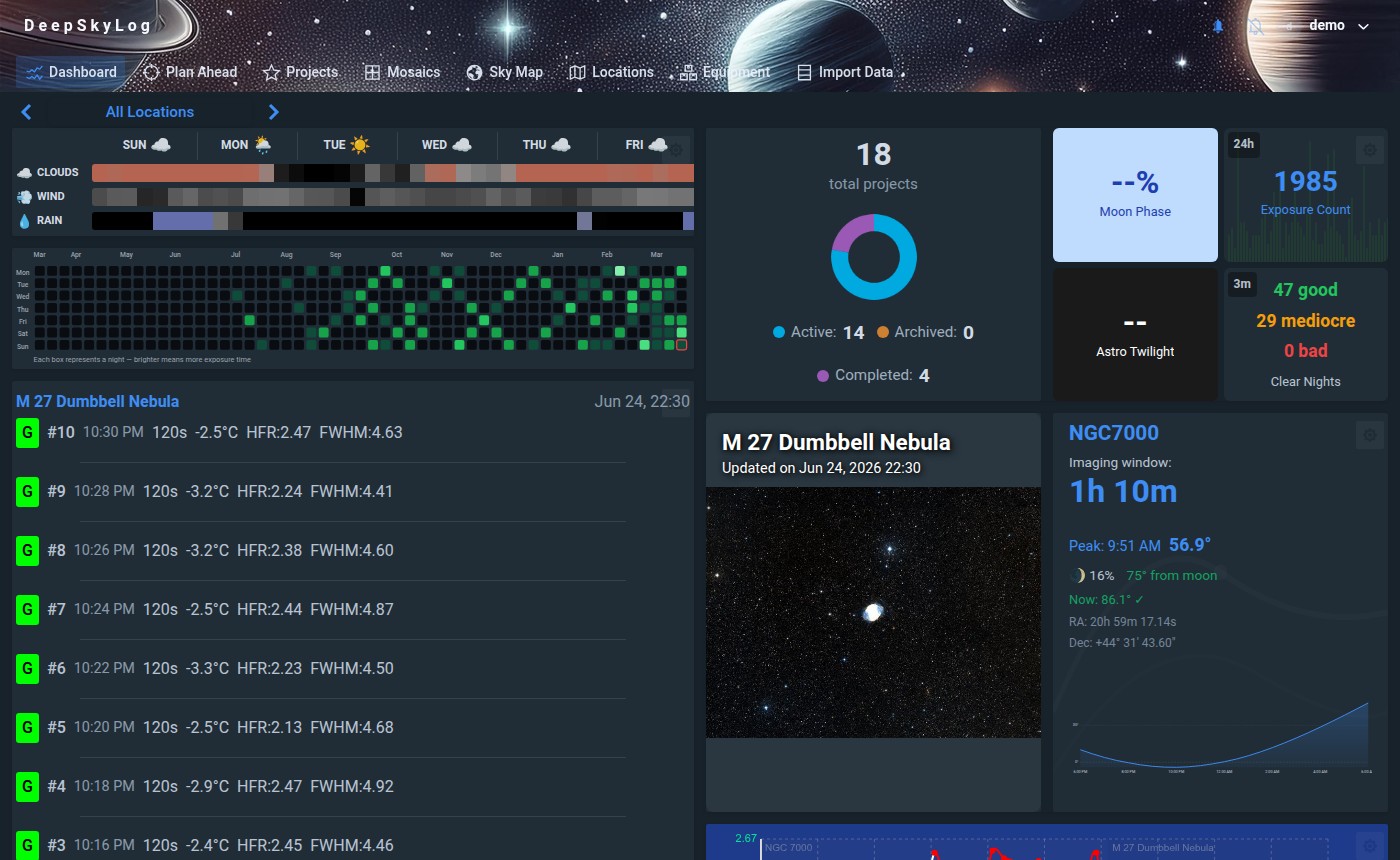
DeepSkyLog reads your FITS collection and your new NINA captures and keeps track of what each target still needs. It also shows imaging windows and the weather at your locations, so you can plan the next session knowing what you already have.
Only metadata is imported. Your FITS files stay on your own storage, so keep your backups.
Works without NINA. Import FITS collections from AsiAir, KStars / Ekos, Voyager, NINA and other capture software.
What's new
A desktop app for Windows, macOS and Linux that scans your session folders, measures the stars and uploads the metadata to DeepSkyLog.
Locations can now have a horizon, drawn or imported from a .hrz file, and every planning view uses it.
Plan Ahead scores each project by how well the night's moon suits its filters, worth up to 20 points.
Two ways in
You don't need to change your capture software, or wait for another session to get something useful out of DeepSkyLog.
The collection you already have
Batch-import metadata from your existing folders with the free DeepSkyLog Uploader or the command-line importer. Years of captures end up in one place, whatever software you used.
New captures as they happen
Use the NINA plugin to send frame metadata automatically during a sequence. Project totals stay up to date without a separate import.
Already have a NINA archive? Use either importer for your older FITS files, too.
Before you start: web imports and the DeepSkyLog Uploader are free; CLI imports and NINA integration are paid. Compare plans.
Plan, capture, review
See when your targets are up and what the weather does at your locations, next to the projects you have not finished yet.
Target visibility and project planningCompare the exposure per night and per filter with your goals. For a mosaic, look at each panel. For a shared project, check what the others have already added before you collect more.
Projects and filter goalsLook at the frame metrics from that night. If star size or guiding changed, you see where, and you know which frames to check before processing.
Reading the session dashboard
An example from the application
The M 45 mosaic below covers the whole target, but the panels have very different exposure totals, so you can see which one to image next.
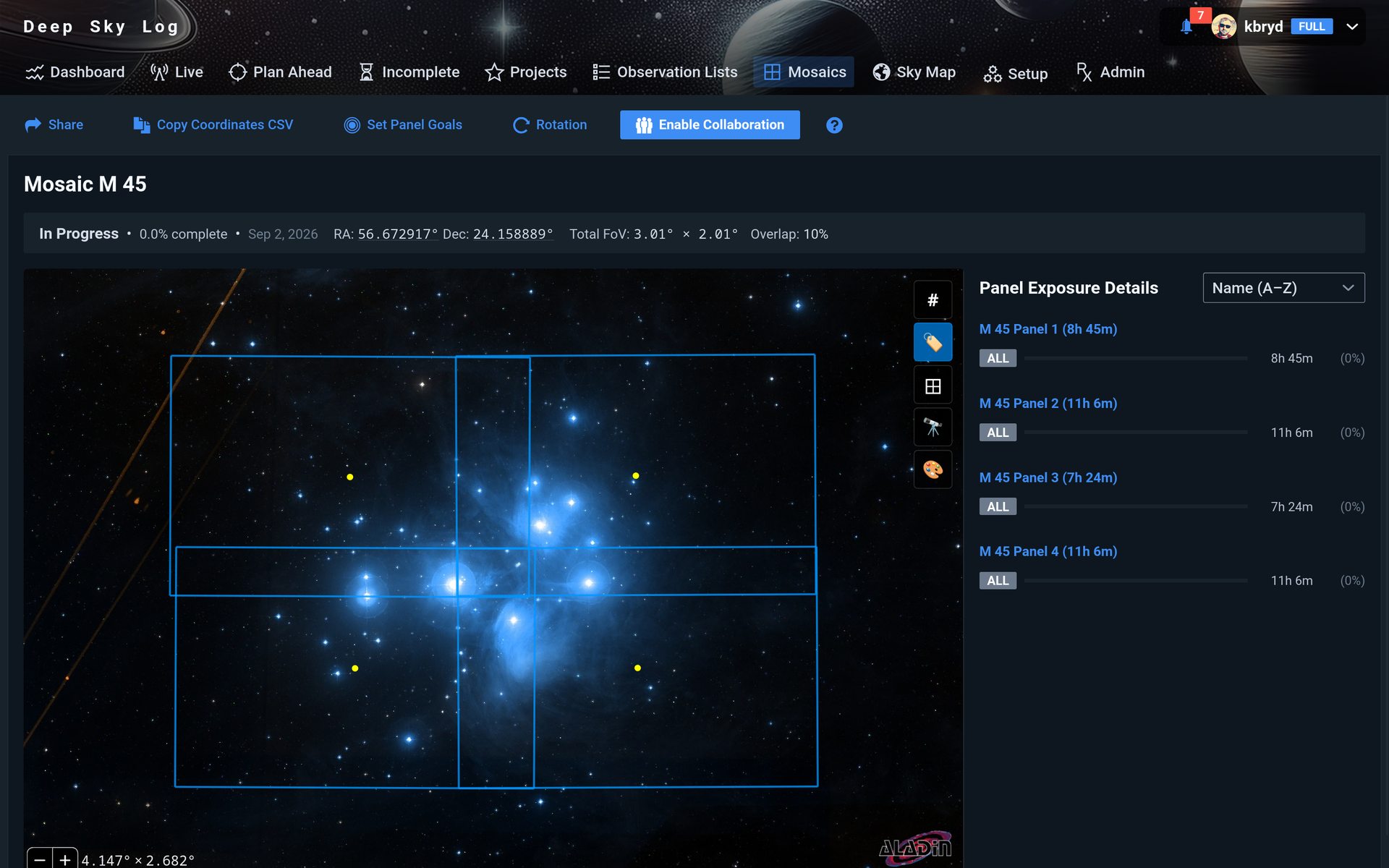
If you want similar depth in every panel, Panel 3 is the first one to look at, with just over 7 hours. Check its filter totals and frame quality, then use the target's imaging window and your forecast to plan the next sequence.
Working with mosaicsWhere it fits
Telescopius helps you pick a target and frame it. AstroBin is where the finished image goes. In between are months of nights on the same target, and that is the part DeepSkyLog keeps track of - how much you have per filter and per mosaic panel, and what is still missing.
It reads all of that from your FITS files and from NINA, so there is no spreadsheet to keep up. It also shows when your targets are up and what the weather does at your locations, and you can share a project with friends imaging the same target.
Roughly - each of them does more than this.
You can use all three - they do not replace each other.
Getting started
Choose files from one equipment setup and location. Check the target names and filters before importing the wider collection.
Pick an unfinished target and set the integration time you want for each filter. Now the totals show how far you are.
Compare what is missing with target visibility and your forecast. After capturing, check the new data and plan the next session from the updated totals.
The person behind it
I’m Karol, the developer of DeepSkyLog. I am an amateur astrophotographer, or more like an astro-hoarder, as I capture more than I process :-) This is why I created DeepSkyLog - previously known as astrohoarder.space - to track what I have captured so far.
I’m a real person, you can see my collection of astro-images on astrohoarder.space.
If a part of your imaging workflow doesn’t fit, or an import doesn’t make sense, I’d like to hear about it.
Tell me which capture software you use and how you decide what to capture next, or simply if something just does not work. A concrete example of what gets in the way helps me understand what needs to change.
Write me a noteor email contact@deepskylog.space
 Support me on Ko-fi