DeepSkyLog Uploader
The free desktop app for Windows, macOS and Linux that brings your FITS archive into DeepSkyLog
The DeepSkyLog Uploader is a free desktop app for Windows, macOS and Linux. Point it at your session folders: it reads every FITS and XISF light frame, measures the stars on your computer and sends the metadata to your DeepSkyLog account, grouped by target, night and equipment. Your images never leave your computer.
It works on every plan, including Free, within the plan’s limits: on Free and the trial, 20 projects, 200 frames per project and 4,000 frames in all. Once you sign in, the app shows how much of them you have used. An upload that would go over a limit sends what fits - the earliest frames of a night - and the row’s status says why the rest stayed behind.
Download
On Windows and Linux nothing needs installing: unzip it anywhere, keep the files together, and run it. On macOS, open the disk image and drag the app into Applications.
- Windows: run
DeepSkyLogUploader.exe. I sign the app as Metasys, my own small company, through which I publish DeepSkyLog and its apps. Until the app is widely downloaded, Microsoft SmartScreen may still say “Windows protected your PC”: check that the publisher is Metasys, then click More info and Run anyway. If the window stays black (some virtual machines and remote desktops), start it asDeepSkyLogUploader.exe --software-rendering. - macOS (Apple Silicon, M1 or later): open the downloaded
.dmgand drag DeepSkyLog Uploader.app into Applications. Apple has notarised the app, so it opens normally. - Linux (x64): run
./DeepSkyLogUploaderfrom a terminal or your file manager.
Settings are kept in %APPDATA%\DeepSkyLog on Windows and ~/.config/DeepSkyLog on macOS and Linux.
Getting started
The first time you open the app, the Getting started panel lists the five steps and ticks each one off as you go: choose your folders, scan, sign in, match locations and equipment, upload. The current step has a button that does it. Press F1 or the ? button to bring the panel back; the - button folds it into the status bar.
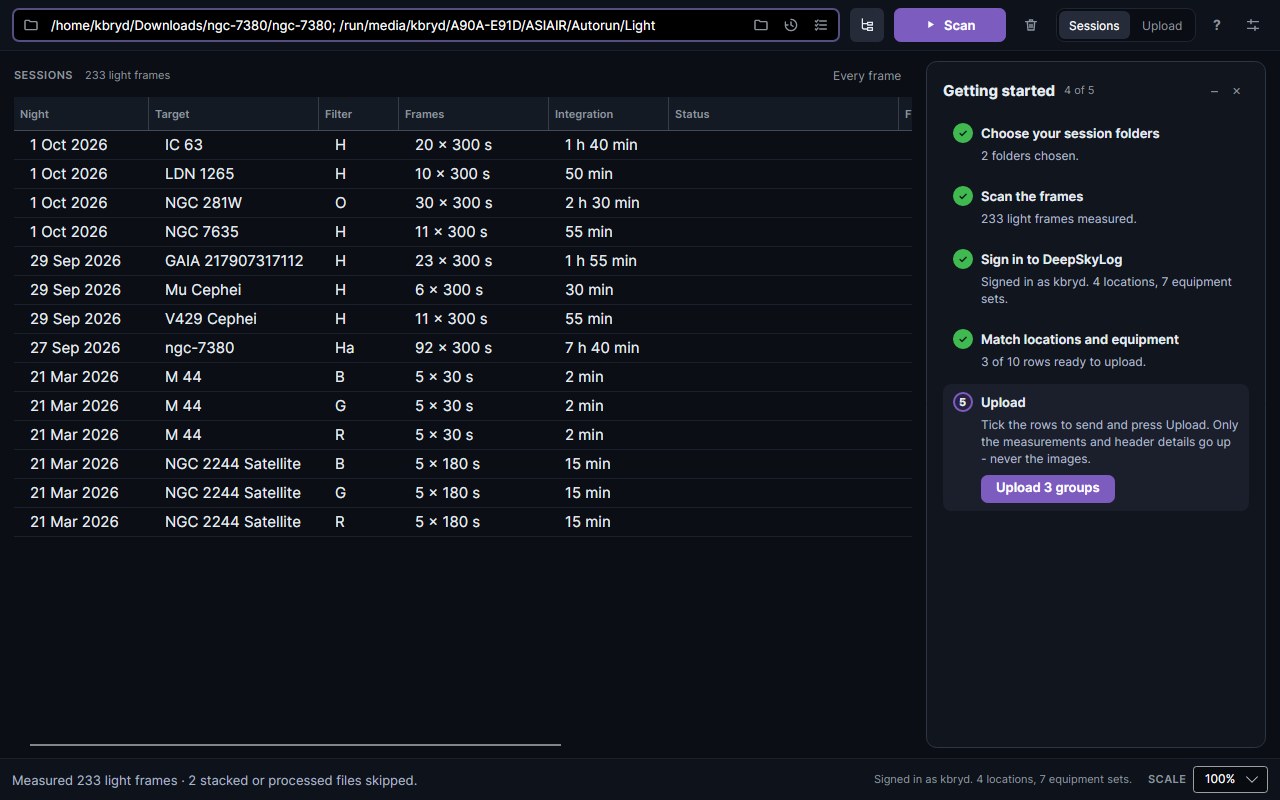
1. Choose your folders
Type or paste a folder into the folder box, press the folder button (Ctrl+O), or pick one you scanned before from Recent (the clock button). Several folders can go in at once, separated by ;.
- Subfolders (the tree button) scans the folders inside the chosen ones too. Leave it on for an archive organised by target or night.
- Add multiple (the list button) opens a folder of sessions and lets you tick the ones to scan.
Darks, flats, bias frames and stacked or processed files (masters, Siril and APP intermediates) are skipped by themselves. Frames in a rejected folder are scanned like any other.
2. Scan
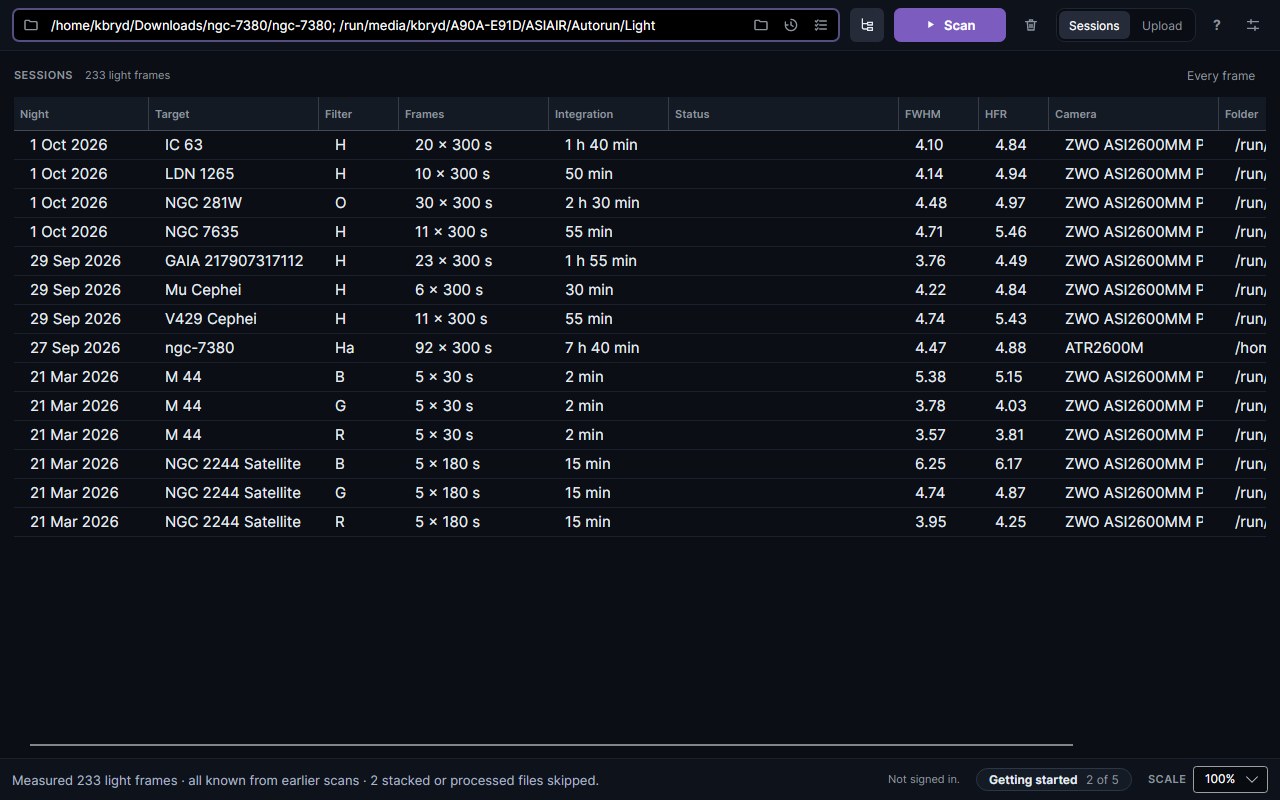
Press Scan (Ctrl+Enter). The app reads each light frame and measures its stars - HFR, FWHM and eccentricity, the same way N.I.N.A does - so frames from software that does not record them, like ASIAIR, still arrive with star metrics. The status bar shows how far it is and about how long is left. Cancel (Esc) keeps everything measured so far; scan again to carry on.
Measured frames are remembered, so a second scan of the same folder takes seconds. For a very large archive you can turn off Measure the stars in every frame in Settings: only the headers are read, which is many times faster, but those frames go up without star measurements.
The Sessions tab shows what was found, one line per target, night and filter: frames and exposure, total integration, median FWHM and HFR, and whether it is already on DeepSkyLog. Every frame switches to one line per frame. There, Include anyway uploads a frame the app left out because it looked stacked (a camera that writes 32-bit frames, for example), and Leave out undoes it.
When you open the app later, it checks the archive you scanned last for folders that gained frames since and offers to Scan them.
NINA session files
If you capture with NINA and its Session Metadata plugin, each session folder also has ImageMetaData.json and WeatherData.json. They hold what NINA knew but did not write into the FITS header: guiding RMS, sky background (ADU) statistics, pier side, and the weather from your weather station. After a scan the app looks for these files beside the frames and up to two folders above them, including any SessionMetadata… folder there (an archive that keeps one per rig, like SessionMetadata and SessionMetadata_Local, is read whole), and uses them by itself. If there are none, it asks whether you have them: Choose folder… points it at one or more folders, and it remembers them for the next scan. Don’t ask again is for archives without NINA; Settings turns the question back on.
Frames are matched by file name, or by their start time if you renamed them. What gets sent… shows how many frames of a row have NINA data.
3. Sign in
On the Upload tab, press Sign in. Your browser opens the DeepSkyLog sign-in page; once it says you are signed in, go back to the app. If the browser cannot hand the sign-in back, Trouble signing in? lets you paste the link from the browser or an API token instead.
4. Match locations and equipment
The Upload tab has one row per target, night and rig. Each row needs a DeepSkyLog location and equipment set; most are matched from the FITS headers (site coordinates, camera, telescope and focal length).
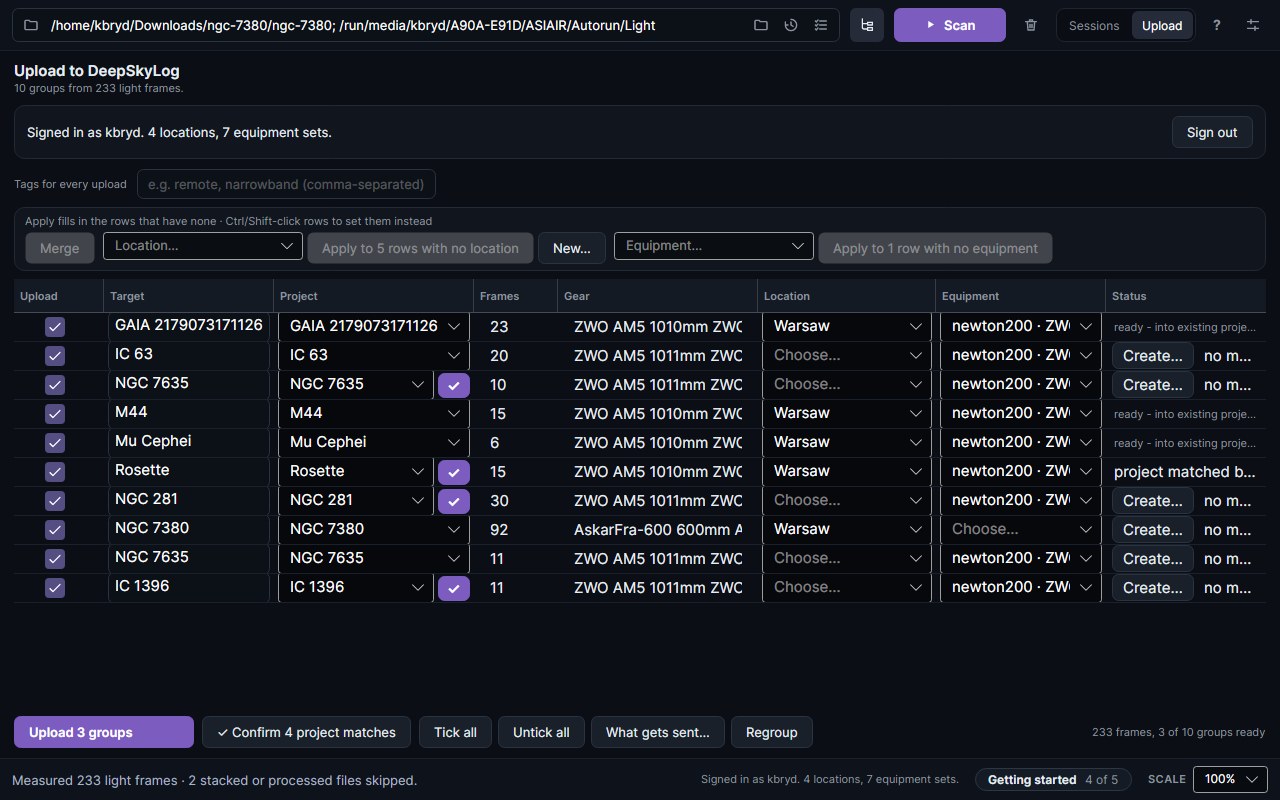
- Missing a location or equipment? Pick it in the row, or press Create… to add it to DeepSkyLog from what the headers say.
- Many rows at once: the bar above the table sets one location or equipment on the selected rows (Ctrl/Shift-click), or on every row still missing one. Picking equipment on one row fills every other row with the same camera and telescope.
- Target names come from the headers or, if a frame has none, from its file and folder names. Click a target to correct it; the correction is remembered for future scans.
- Projects: a row matched to one of your projects by sky position shows a ✓ button. Press it to confirm, or Confirm all project matches.
- Merge combines the selected rows into one, for archives where every file looks like its own target.
Once a rig has been uploaded with an equipment set, the app remembers it and picks it by itself next time.
5. Upload
Tick the rows to send and press Upload. The rows show how DeepSkyLog files the frames into your projects; you can carry on working meanwhile.
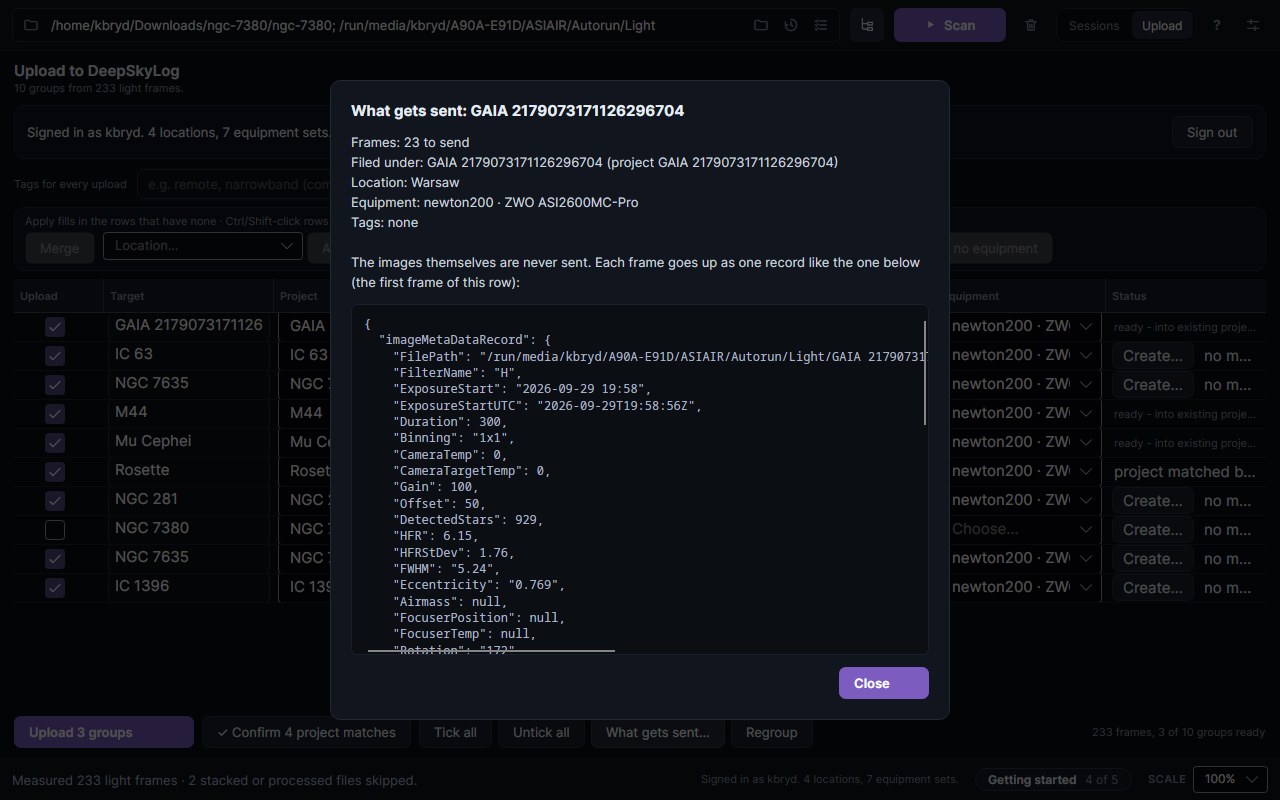
What gets sent… shows exactly what an upload of the selected row contains: where it is filed, and one frame’s record as the server receives it. Only metadata and the measurements go up, never the images.
The app remembers what was uploaded. When you scan the same folders next month, nights already on DeepSkyLog show as uploaded and are not offered again; only new frames go up. Tags for every upload adds the same labels to everything you send, to find it in DeepSkyLog later.
Settings
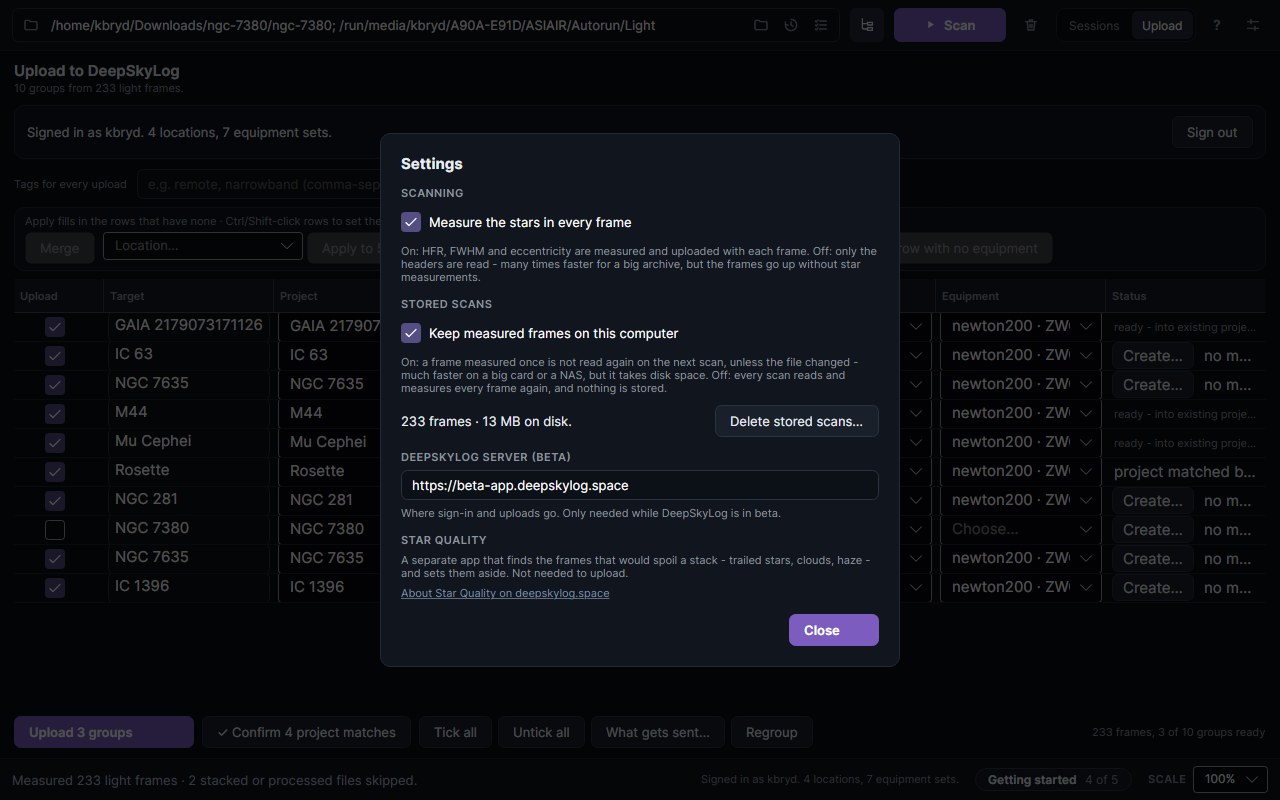
- Measure the stars in every frame - on by default; off reads only the headers (see Scan above).
- Keep measured frames on this computer - the stored scans that make rescans fast. Delete stored scans removes them; your frames are not touched.
The Scale box in the status bar makes the whole window larger on a high-resolution screen.
Good to know
- Metadata only. The app reads your files and never changes, moves or deletes them. DeepSkyLog is not an image backup.
- Metrics depend on your data. Star metrics are measured by the app; guiding, weather and focuser values come only from what your capture software wrote into the headers.
- Sorting out bad frames first? That is StarSift, a separate app. You do not need it to upload.
- Scripting or a headless machine? Use the Batch Upload CLI instead.