Getting Started
Import your existing FITS collection or connect NINA for live session tracking
Start with the data you already have, or connect your next imaging session:
- Import your existing FITS collection with the free DeepSkyLog Uploader for Windows, macOS and Linux, or the command-line tool. FITS files from AsiAir, KStars/Ekos, Voyager, and NINA are supported; NINA is not required.
- Connect the live NINA plugin to send metadata as you capture and follow your session in real time.
Both routes send metadata only. Your original FITS files remain on your own storage; DeepSkyLog is not an image backup. Star metrics (HFR, FWHM, eccentricity) are measured by the DeepSkyLog Uploader on your computer; other values depend on what your capture software recorded.
Web imports and the DeepSkyLog Uploader are free; the CLI and NINA plugin are available on a paid account.
Step 1: Create Your Account
- Visit app.deepskylog.space and create your account
- Verify your email address and log in
- Set up your first Location (e.g., your backyard, remote site)
- Create an Equipment profile - combine your telescope, camera, and filters into a named setup
Select these Location and Equipment profiles in the DeepSkyLog Uploader, the CLI, or the NINA plugin. The Uploader can also create them for you from your FITS headers.
Step 2: Choose Your Upload Method
Import Your Existing Collection
Use the DeepSkyLog Uploader or the CLI to batch-import metadata from your FITS archive, including files from AsiAir, KStars/Ekos, Voyager, and NINA.
For your first import, start with one target from one night. Select the matching equipment and location, then check the target name, filters, and available metadata in the web app. Once those look right, import your wider collection in batches grouped by equipment and location rather than assigning a mixed archive to one setup.
DeepSkyLog Uploader (Windows, macOS, Linux)
The DeepSkyLog Uploader is a free desktop app. Choose your session folders and press Scan: it measures the stars in every light frame on your computer, groups the frames by target, night and equipment, matches them to your DeepSkyLog locations and equipment, and uploads the metadata. It works on every plan, including Free.
On Windows and Linux, unzip it anywhere and run it; nothing needs installing. I sign the Windows app as Metasys, my own small company, through which I publish DeepSkyLog. Until the app is widely downloaded, SmartScreen may still say “Windows protected your PC”: check that the publisher is Metasys, then click More info and Run anyway. On macOS, open the .dmg and drag the app into Applications; Apple has notarised it, so it opens normally.
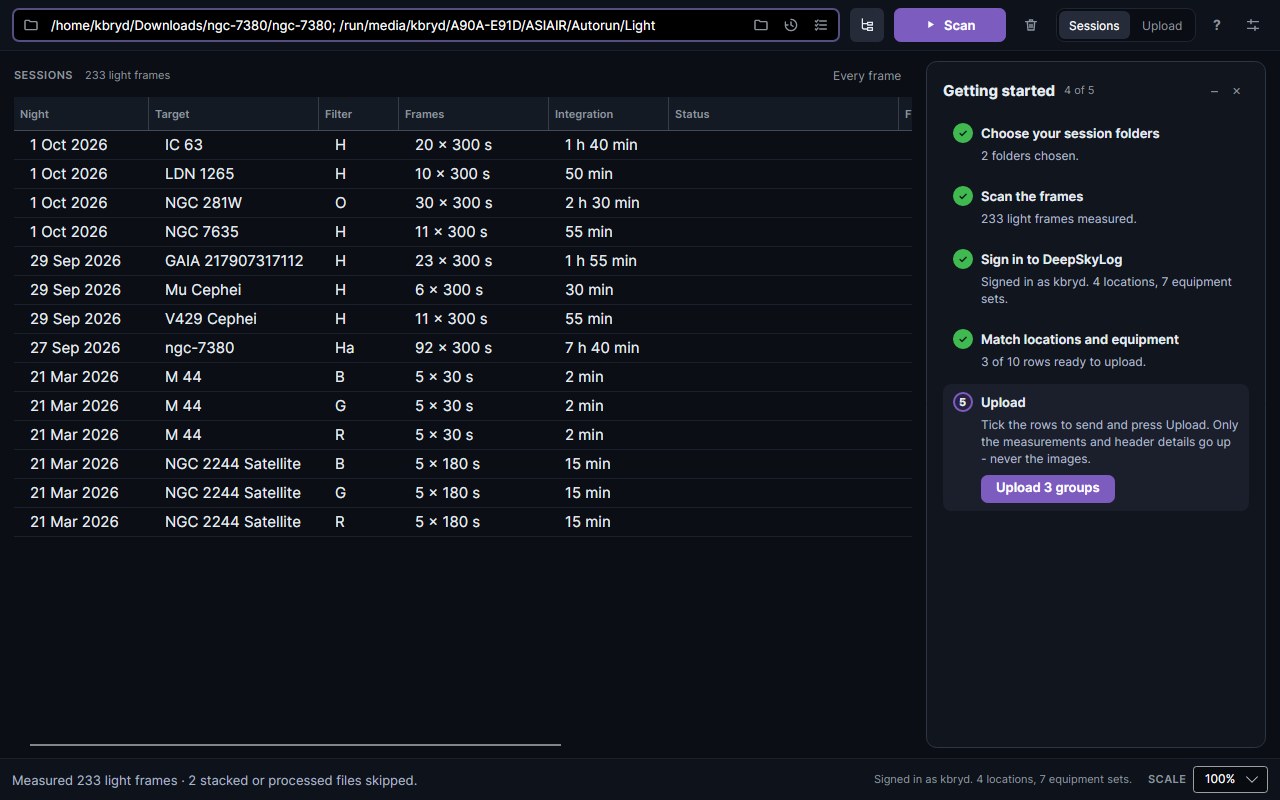
The app’s Getting started panel walks you through the five steps: choose folders, scan, sign in, match locations and equipment, upload. See the DeepSkyLog Uploader guide for each step in detail.
Batch Upload CLI (Cross-Platform)
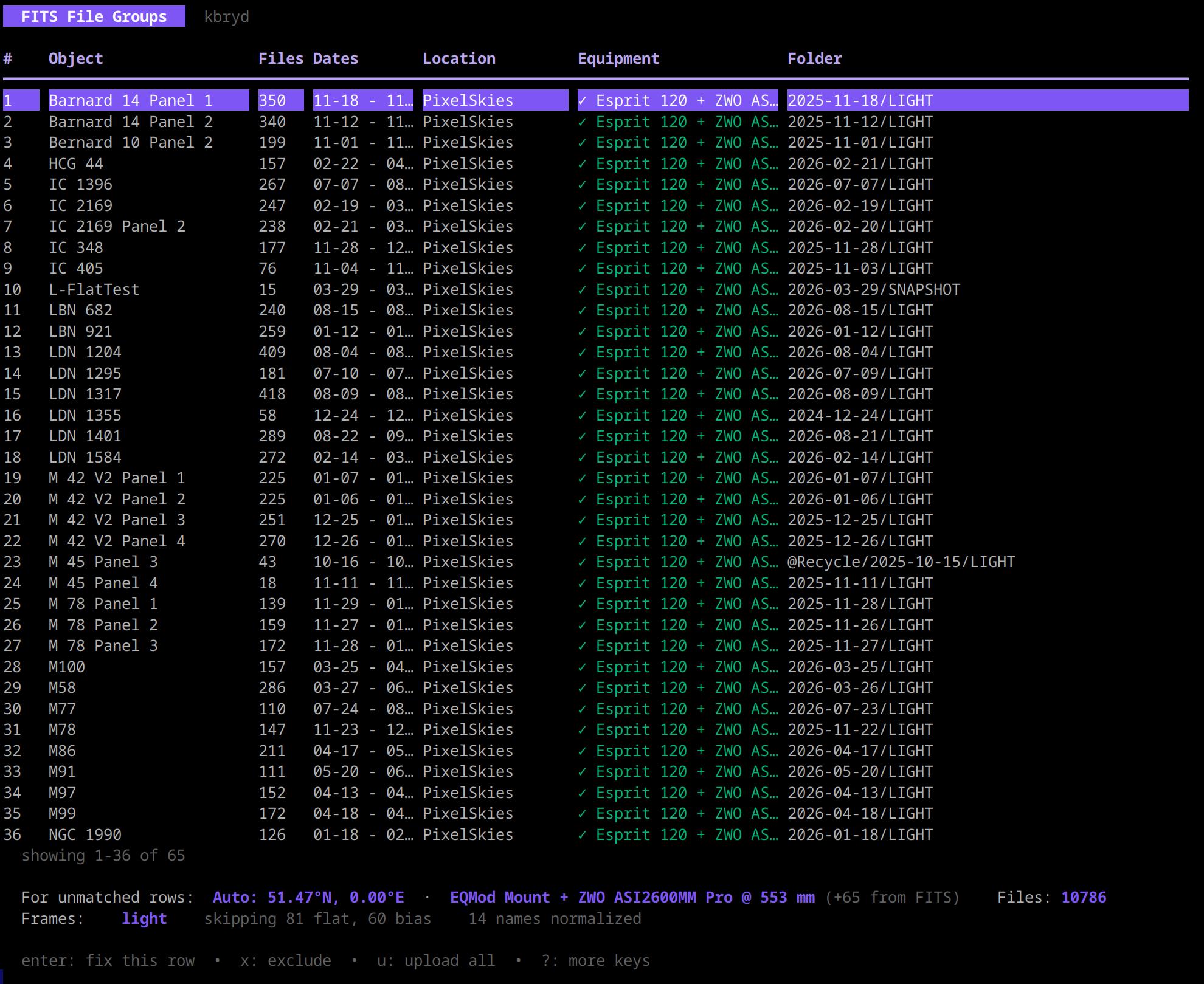
The Batch Upload CLI is a single, standalone command-line tool for Windows, Linux, and macOS. It is ideal for scripting, scheduled syncs, and uploading from headless machines or network storage (NAS). No installation is required - download the zip for your platform and unzip it. The folder holds the program, a short README, the licence terms and the open-source notices.
First-time setup:
Open a terminal in the download folder. On Linux (x86-64), make the file executable, then run it with no arguments to launch the setup wizard:
chmod +x batch-upload-v1.1.0-linux-amd64
./batch-upload-v1.1.0-linux-amd64
On macOS (Apple Silicon):
chmod +x batch-upload-v1.1.0-macos-arm64
./batch-upload-v1.1.0-macos-arm64
On an Intel Mac, use the macos-amd64 binary the same way.
On Windows, open a terminal in the download folder and run:
.\batch-upload-v1.1.0-windows-amd64.exe
The setup wizard runs once and walks you through:
- Authentication - a browser window opens for you to sign in to DeepSkyLog
- Default Location - pick the observing location to associate with uploads
- Default Equipment - pick the equipment profile to associate with uploads
Your settings are saved to ~/.batch-upload/config.json, so you only do this once. Run with -reset any time to
go through the wizard again.
Uploading frames:
Point the tool at your first target/night folder with -dir. Run the command for your OS from the download folder:
Linux (x86-64):
./batch-upload-v1.1.0-linux-amd64 -dir "/path/to/your/fits"
macOS (Apple Silicon):
./batch-upload-v1.1.0-macos-arm64 -dir "/path/to/your/fits"
Windows (x86-64, PowerShell):
.\batch-upload-v1.1.0-windows-amd64.exe -dir "C:\Astro\M31\2025-02-05"
It scans the folder, reads each frame’s metadata, and uploads it using your default location and equipment.
Useful options:
| Option | Description |
|---|---|
-dir <path> | Folder(s) to scan for FITS files (comma-separated, supports glob patterns) |
-tui | Launch an interactive terminal UI to review and select frames before uploading |
-location-name <name> | Override the default location for this run |
-equipment-name <name> | Override the default equipment for this run |
-list-locations | List your locations and exit |
-list-equipment | List your equipment profiles and exit |
-metadata-dir <path> | Folder with NINA ImageMetaData*.json / WeatherData*.json sidecar files |
-reset | Re-run the setup wizard |
-version | Show the version and exit |
Tip: Because it’s a single binary with no dependencies, the CLI is ideal for a scheduled task (cron / Task Scheduler) that syncs a capture folder automatically.
NINA Plugin (Real-Time Upload)
Choose this route to send frame metadata as you capture and follow live session telemetry. Only metadata is sent; your FITS files remain on your own storage.
Quick start:
- Open NINA, go to Options > Plugins, search for DeepSkyLog, then Install and restart NINA
- Open the DeepSkyLog plugin and toggle Plugin Enabled to ON
- Sign in with your DeepSkyLog account and select your Location and Equipment
The plugin then sends metadata and live telemetry automatically. Check your first frames in the web app to confirm the target, filters, equipment, location, and available metrics. For the full setup, what gets uploaded, and troubleshooting, see the NINA Integration guide.
Step 3: Projects Are Created Automatically
Import tools can create projects and associate frame metadata with them. Review the resulting projects after your first batch or live captures, especially the target name, location, and equipment. Use consistent target names, but check the results before importing a mixed archive.
Head to the web app to review your projects and optionally set filter goals (e.g., 10 hours of Ha, 5 hours of OIII) to track your imaging progress.
Step 4: Explore Your Data
With frames uploaded and projects set up, you can now:
- View dashboards with integration time, session history, and progress toward goals
- Use the Sky Map (powered by Aladin) to visualize frame coverage and mosaic layouts
- Analyze quality metrics - track HFR trends, guiding performance
- Collaborate - share projects with team members and track contributions
Tips
- Use consistent target names across your capture software and import tools for project matching
- Check the HFR and eccentricity stats to identify subpar frames before you start processing
- Set filter goals on your projects to see exactly how much integration time you still need
For a suggested routine, follow Your First Project: check one night, set a goal, then bring in the wider collection.
Need Help?
- FAQ - common questions and answers
- Email: write to me at support@deepskylog.space - I read and answer every message myself