Your First Project
Turn an imported night into a useful record, then build up your collection
You don’t need to import every drive on day one. Start with one unfinished target, check that the record makes sense, and give it a goal. This walkthrough works whether you capture with AsiAir, KStars/Ekos, Voyager, NINA, or another tool that writes FITS files.
For downloads and installation, use Getting Started. Web imports and the DeepSkyLog Uploader are free; the CLI and NINA plugin are available on a paid account.
1. Choose One Night and One Setup
Pick a folder containing one target captured with the same equipment at the same location. Create those equipment and location profiles in DeepSkyLog, then select them in your importer.
Import the FITS headers with whichever route suits you:
- Web app import - the quickest way to try one night. Open Setup > Import Data, select the folder’s FITS files, and assign them to a project before committing. Nothing to install, and it’s free.
- DeepSkyLog Uploader or CLI - for larger collections: the Uploader for Windows, macOS and Linux in a window, the CLI for scripts and scheduled syncs. See Getting Started for downloads and commands.
- NINA plugin - if you’re starting with new NINA captures, connect the plugin and check the first few frames instead.
Your original FITS files stay where they are. Keep your usual storage and backup routine.
2. Check the Record Before Importing More
Open the resulting project and check:
- Target name: does it match the name you want to use for this object across sessions?
- Filters and exposure: are the filters recognized, and do the recorded exposure totals look right?
- Equipment and location: does the record describe the setup that actually captured these files?
- Available metrics: which measurements were saved by your capture software?
Consistent target names make it easier to bring later sessions into the same project. If your archive uses several names for one target, review the resulting projects before continuing. Don’t import files from several rigs or sites using a single default equipment/location assignment.
If a field is missing, importing the file cannot recreate information that was never recorded. The DeepSkyLog Uploader measures star metrics locally, but that is different from recovering historical guiding or weather data.
3. Set an Integration Goal
Choose a target you still want to work on and set an integration goal for each filter you use.
For example, suppose you want 10 hours of Ha and 5 hours of OIII. If the record shows 6 hours of Ha and 2 hours of OIII, you can see that another 4 and 3 hours are needed respectively. These are example goals, not recommended exposure times for every target.
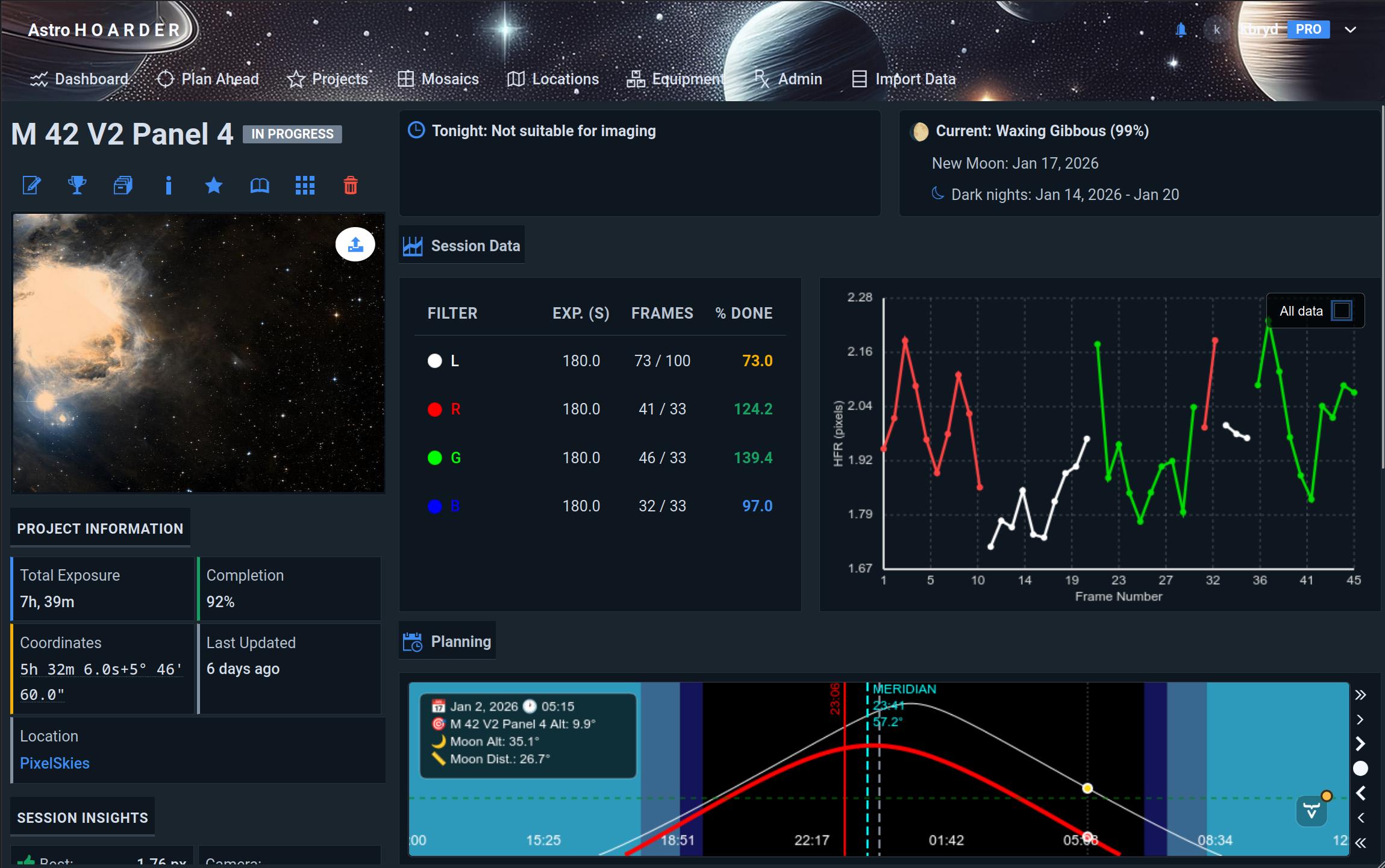
An exposure total tells you how much was captured, not how much you will keep. Review the data quality before treating a completed progress bar as a finished image.
4. Bring In the Wider Collection
Once the first import looks right, work through the remaining folders in batches with the appropriate equipment and location selected. You can use any of the import routes even if the images were captured years ago or with different acquisition software.
The CLI supports location and equipment overrides for each run. The DeepSkyLog Uploader matches them from the FITS headers and lets you change them for each target and night before uploading. See the setup guide for the actual commands and controls.
For a mosaic, check the supported panel naming patterns before importing the full collection. This helps DeepSkyLog recognize the related projects as panels rather than unrelated targets.
5. Review the Next Session
After the next night, sync the new metadata or let the NINA plugin send it during capture. Check the available frame measurements for changes in star size, eccentricity, or guiding that deserve a closer look.
Compare the new filter totals against your goals. For mosaics, check both sky coverage and integration per panel: covering the whole target doesn’t mean all panels have similar depth.
Use that record alongside your planning tool when deciding what to capture next. DeepSkyLog keeps track of the work; your acquisition software still takes the exposures, and your processing tools still produce the image.
Imaging With Other People?
Set up a shared project before importing contributions. Check the routing rules, especially if you already have a private project with the same target name. DeepSkyLog tracks each contributor’s metadata and progress; arrange the exchange of original image files separately.
If something doesn’t match your collection, send a note with the capture software, import method, and the field or result you expected.