Track what you've captured and plan the next night
DeepSkyLog reads your FITS collection and your new NINA captures and keeps track of what each target still needs. It also shows imaging windows and the weather at your locations, so you can plan the next session knowing what you already have.
Only metadata is imported. Your FITS files stay on your own storage, so keep your backups.
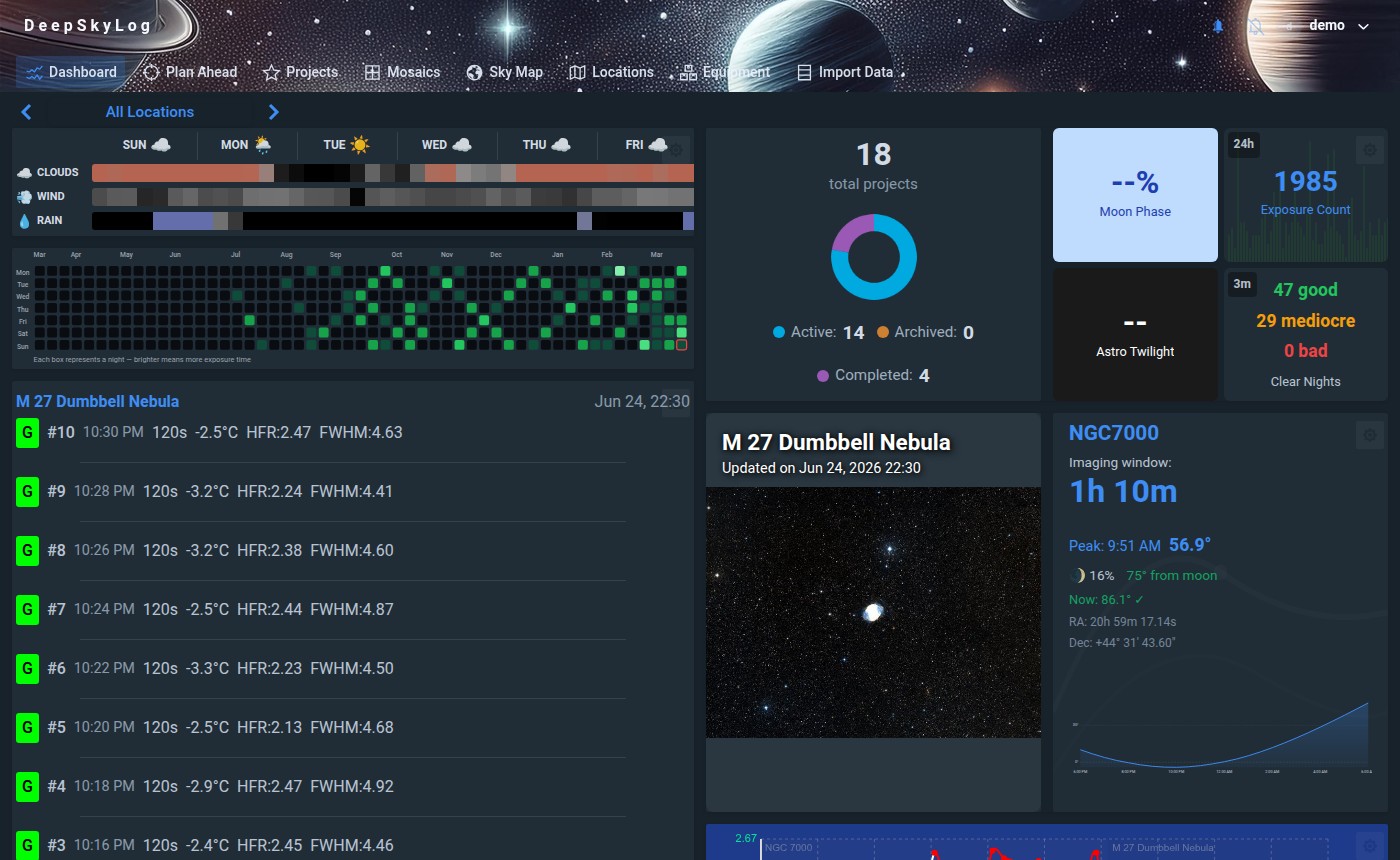
The dashboard: project and exposure totals, the week's forecast, moon phase and the quality of recent sessions. Full-size image
Works without NINA. Import FITS collections from AsiAir, KStars / Ekos, Voyager, NINA and other capture software.
Two ways in
Import your archive or connect NINA
You don't need to change your capture software, or wait for another session to get something useful out of DeepSkyLog.
The collection you already have
Import your FITS collection
Batch-import metadata from your existing folders with the free DeepSkyLog Uploader or the command-line importer. Years of captures end up in one place, whatever software you used.
CLI downloads for Windows, Linux and macOS (Intel and Apple Silicon).
The free DeepSkyLog Uploader for Windows, macOS and Linux if you prefer working in a window.
See which targets and filters still need time, with equipment and location attached.
Compare the exposure per night and per filter with your goals. For a mosaic, look at each panel. For a shared project, check what the others have already added before you collect more.
A project's integration total and filter breakdown above its planning windows and the moon phase for the season. Full-size image
An example from the application
A mosaic with uneven panels
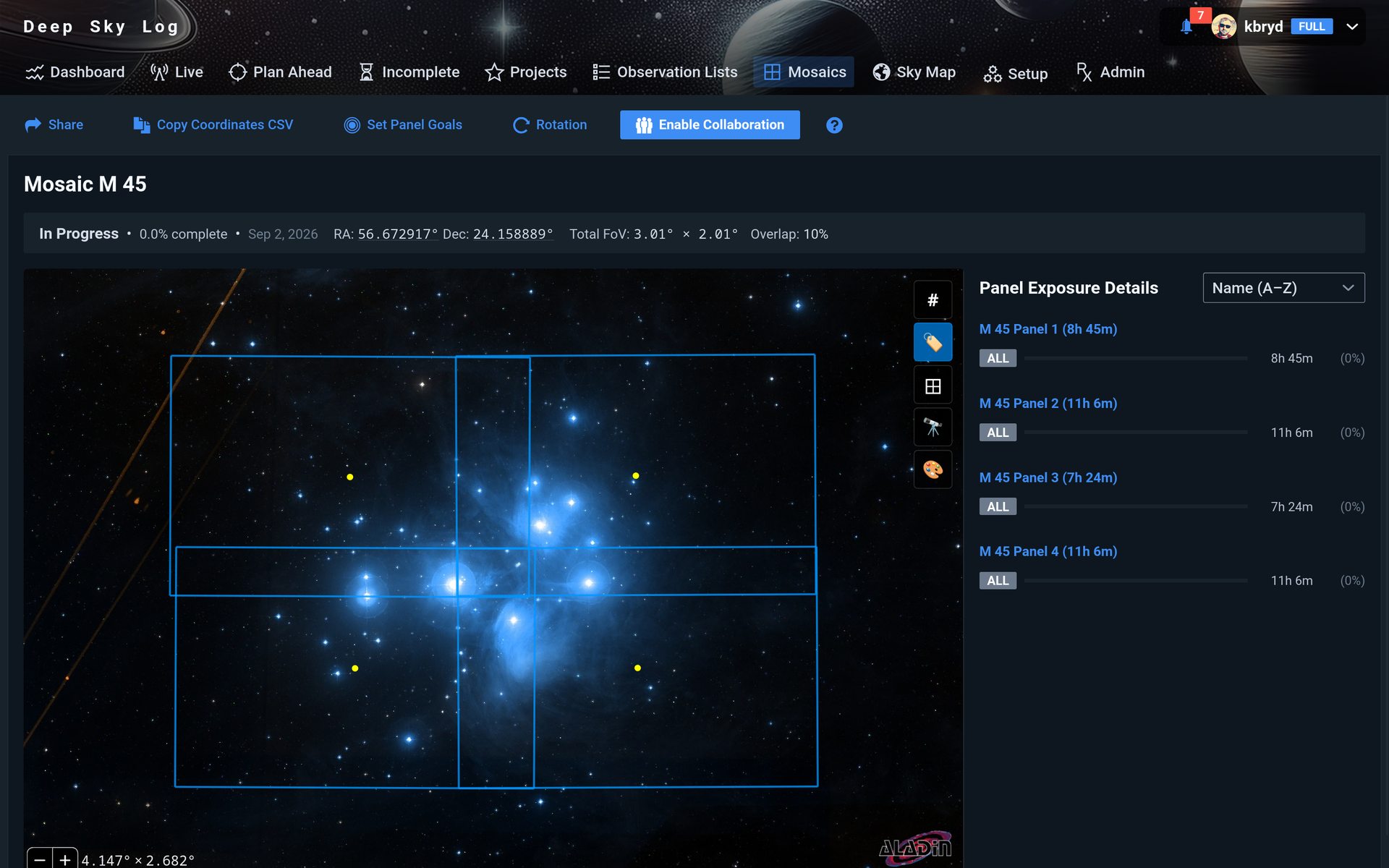
The M 45 mosaic below covers the whole target, but the panels have very different exposure totals, so you can see which one to image next.
M 45 in the sky map, with the exposure of each panel on the right. Open the image to see the panels in detail.
Which panel needs more time?
M 45 Panel 1
8 h 45 m
M 45 Panel 2
11 h 06 m
M 45 Panel 3
7 h 24 m
M 45 Panel 4
11 h 06 m
If you want similar depth in every panel, Panel 3 is the first one to look at, with just over 7 hours. Check its filter totals and frame quality, then use the target's imaging window and your forecast to plan the next sequence.
Telescopius helps you pick a target and frame it. AstroBin is where the finished image goes. In between are months of nights on the same target, and that is the part DeepSkyLog keeps track of - how much you have per filter and per mosaic panel, and what is still missing.
It reads all of that from your FITS files and from NINA, so there is no spreadsheet to keep up. It also shows when your targets are up and what the weather does at your locations, and you can share a project with friends imaging the same target.
Telescopius
Finding targets, framing them and working out when to shoot.
DeepSkyLog
Keeping track of what you have captured on each target, and what it still needs.
AstroBin
Showing finished images, with the equipment and acquisition details behind them.
Roughly - each of them does more than this.
You can use all three - they do not replace each other.
Getting started
First steps
Import one night
Choose files from one equipment setup and location. Check the target names and filters before importing the wider collection.
Give a project a goal
Pick an unfinished target and set the integration time you want for each filter. Now the totals show how far you are.
Plan the next night
Compare what is missing with target visibility and your forecast. After capturing, check the new data and plan the next session from the updated totals.
I’m Karol, the developer of DeepSkyLog. I am an amateur astrophotographer, or more like an astro-hoarder, as I capture more than I process :-) This is why I created DeepSkyLog - previously known as astrohoarder.space - to track what I have captured so far.
If a part of your imaging workflow doesn’t fit, or an import doesn’t make sense, I’d like to hear about it.
Tell me which capture software you use and how you decide what to capture next, or simply if something just does not work. A concrete example of what gets in the way helps me understand what needs to change.
Yes. Plan Ahead shows target imaging windows and the weather forecast for each of your locations, and ranks your unfinished projects for the night. Filter goals and mosaic coverage show what is still missing. Read about project planning.
Do I need NINA?
No. You can import an existing FITS collection with the DeepSkyLog Uploader or the CLI, whatever software wrote the files: AsiAir, KStars / Ekos, Voyager and others. It reads the FITS headers, so there is no special integration for each program. Choose an importer.
Are my original images uploaded?
No. Only metadata is sent. The FITS files stay on your storage, so keep your own backups.
Can I try it before importing everything?
Yes. Try the demo, or create an account and import one night. The free trial has every feature, within its limits on frames and projects. Web imports and the DeepSkyLog Uploader are free. The CLI and NINA uploads need a paid plan or the trial. See pricing and limits.

 Support me on Ko-fi