FITS Frame Management
Automatically import and catalog all your imaging sessions
DeepSkyLog handles the import and cataloging of imaging sessions, helping you manage thousands of FITS files.
Automatic Import
- NINA Integration: Direct integration with NINA imaging software - frames are automatically uploaded as you capture them
- Manual Upload: Use the Import Data module in the web app to select your FITS files. DeepSkyLog will extract the metadata, let you assign files to the correct project, and sync them automatically.
- Bulk import: A command line application which can quickly scan your whole hard drive and upload the FITS metadata. Perfect option for advanced users, real DeepSkyLogs! :-)
- Metadata Extraction: Automatically reads all FITS headers including exposure time, filter, temperature, coordinates, and more
Organize Your Frames
- Smart Grouping: Frames are automatically organized into sessions based on capture time and target
- Filter by Equipment: See which frames were captured with specific cameras, telescopes, or filters
- Search & Filter: Quickly find frames for all projects, analyze HFR metrics for star quality.
Frame Analysis
- Quality Metrics: Track HFR, FWHM, eccentricity, detected stars, guiding RMS, and more
- Multi-Metric Charts: Overlay multiple metrics on a single chart with per-filter coloring, zoom, and pan
- Session Statistics: View total integration time, number of frames, and progress toward your goals
- Frame Preview: Quick preview of your FITS frames directly in the browser
Frame Quality Scoring
Every frame receives a quality score from 0 to 100, combining two independent assessments:
- Relative score - how does this frame compare to the best frames in the same session? Uses HFR (40%), guiding RMS (30%), eccentricity (20%), and star count (10%) with per-project, per-filter baselines.
- Absolute score - is this frame objectively usable? Converts FWHM to arcseconds using the equipment’s pixel scale and rates against universal seeing thresholds (< 2" excellent, 2-3" good, 3-4" average, > 4" poor).
The final score is the minimum of relative and absolute - a frame must pass both tests. This prevents a uniformly poor night from being scored as “good” just because all frames are equally bad.
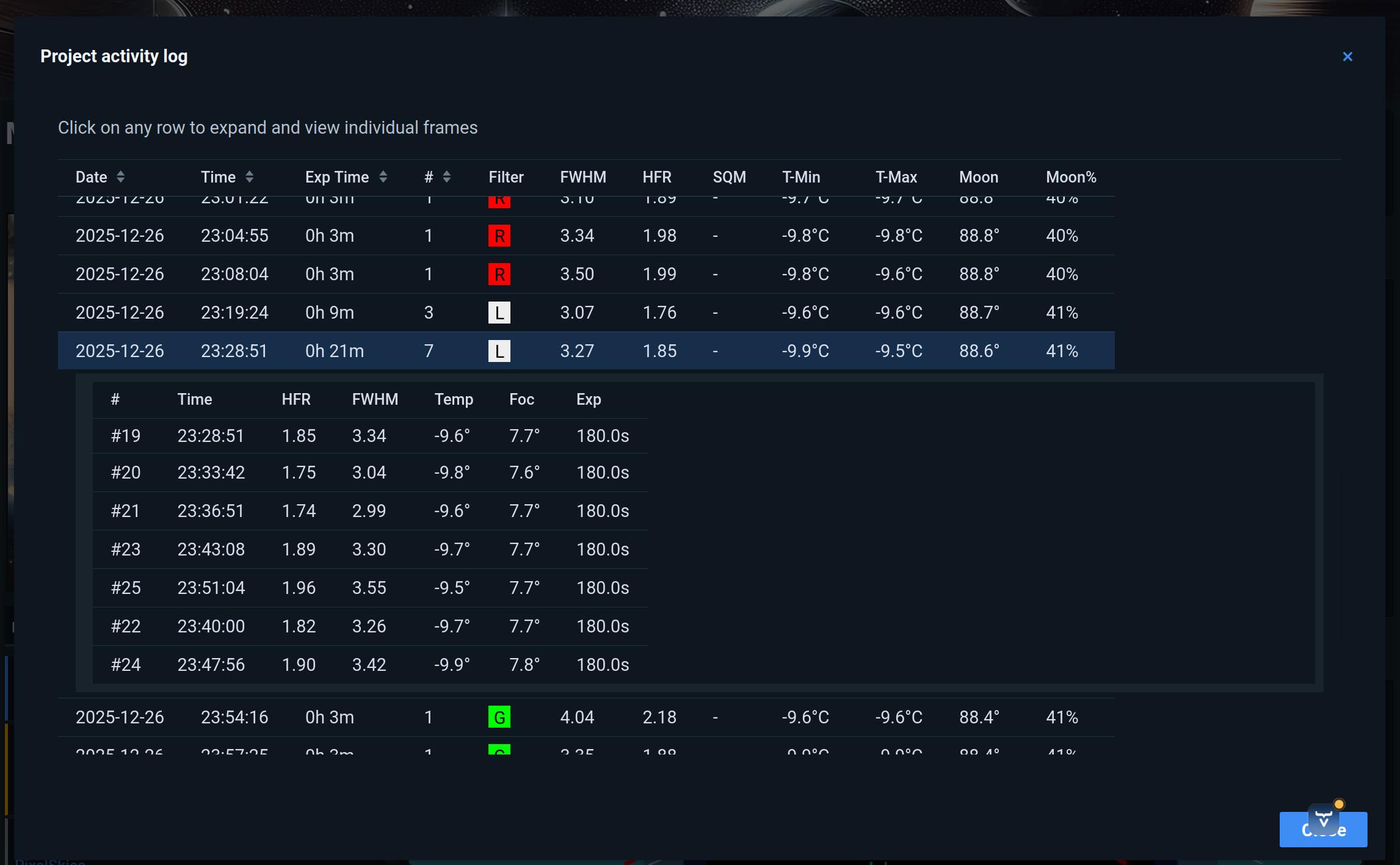
Scores appear in the Session Summary widget, Project Activity log, and Project Details. See the full scoring documentation for details and examples.
Degradation Warnings
The Session Summary widget detects when quality degrades partway through a session (clouds, dew, focus drift) by comparing consecutive frames against the first-half baseline. Sustained runs of 5+ degraded frames trigger a warning.