Plan and track a mosaic
Group panel projects into a mosaic, see sky coverage on the sky map, and plan the next panels.
In DeepSkyLog a mosaic is a group of projects, one project for each panel. If you image Andromeda in four overlapping panels, you join the four projects into one mosaic and see the whole coverage on the sky map.
Name the panels so they group
DeepSkyLog finds mosaics from the project names: the same base name plus a panel identifier.
| Pattern | Example |
|---|---|
<target> Panel <number> | M 31 Panel 1, M 31 Panel 2 |
<target> Panel <number> of <total> | M 31 Panel 1 of 4 |
<target> Panel <number>/<total> | M 31 Panel 1/4 |
<target> P<number> | M 31 P1, M 31 P2 |
Everything except the panel identifier must be exactly the same. “M 31 Panel 1” and “M 31 Panel 2” share the base name “M 31”. A project without a panel identifier is skipped: rename it and run the detection again, or build the mosaic by hand in the Mosaics section.
If your projects have RA/Dec from the FITS headers, DeepSkyLog uses them to place each panel in the grid. Without coordinates it follows the panel numbers. When you run the detection again and new matching projects appear, it offers to add only the new panels to the existing mosaic.
Seeing the coverage and planning the next panels
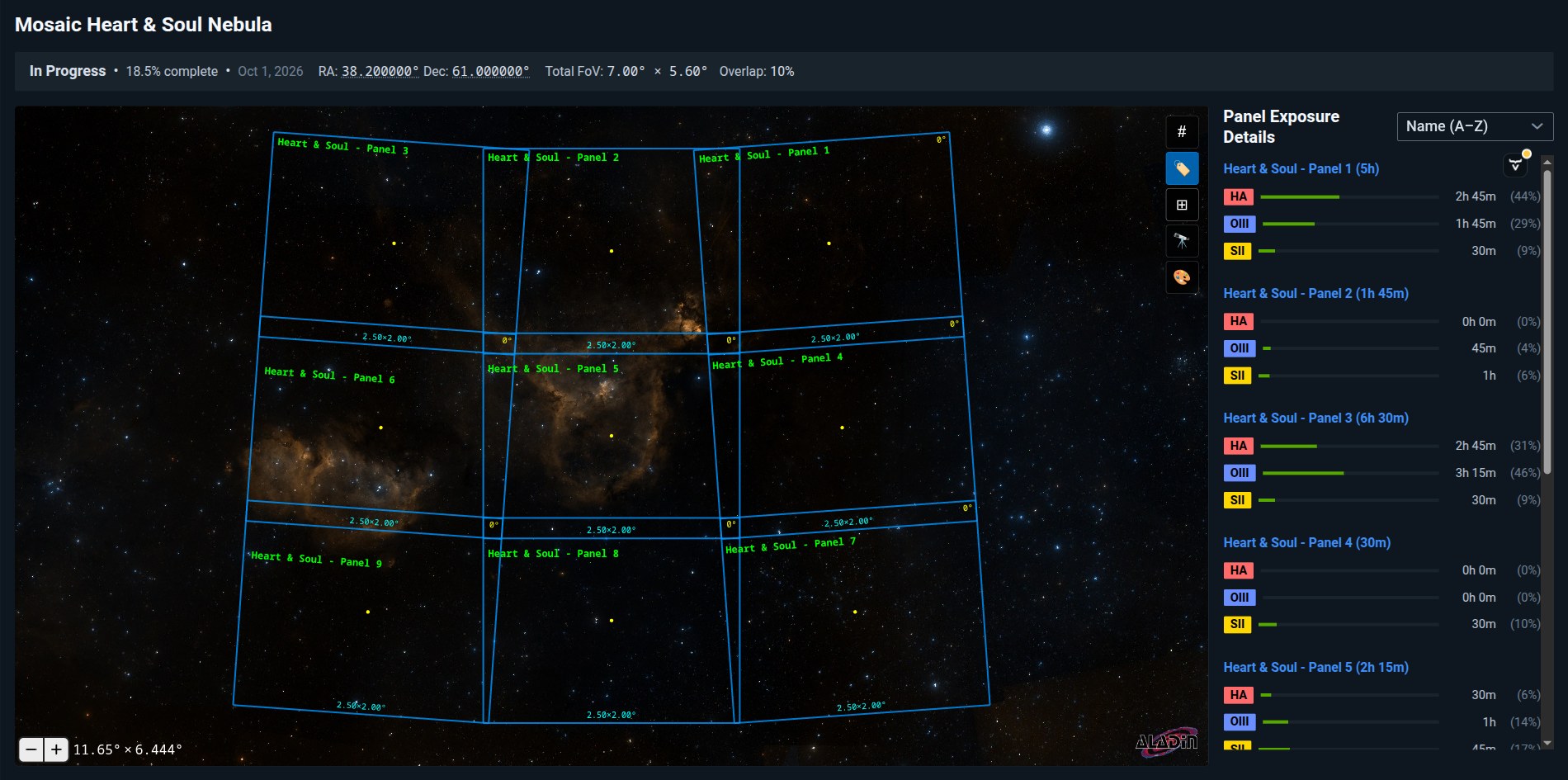
An opened mosaic shows all panels together on the sky, each with its number and size, and the exposure per filter for every panel in the list on the right. A panel with a short bar still needs frames, so you see at a glance where the gaps are. Click a panel to open its project.
Frame Preview draws the field of view of your camera at any position on the sky, so you can plan the pointing before the session. Preview a Larger Mosaic adds + and - buttons on the edges of the grid. New rows and columns are predicted and drawn in gold, they are not saved, and Reset preview removes them. You can also change the overlap used for the predicted panels.
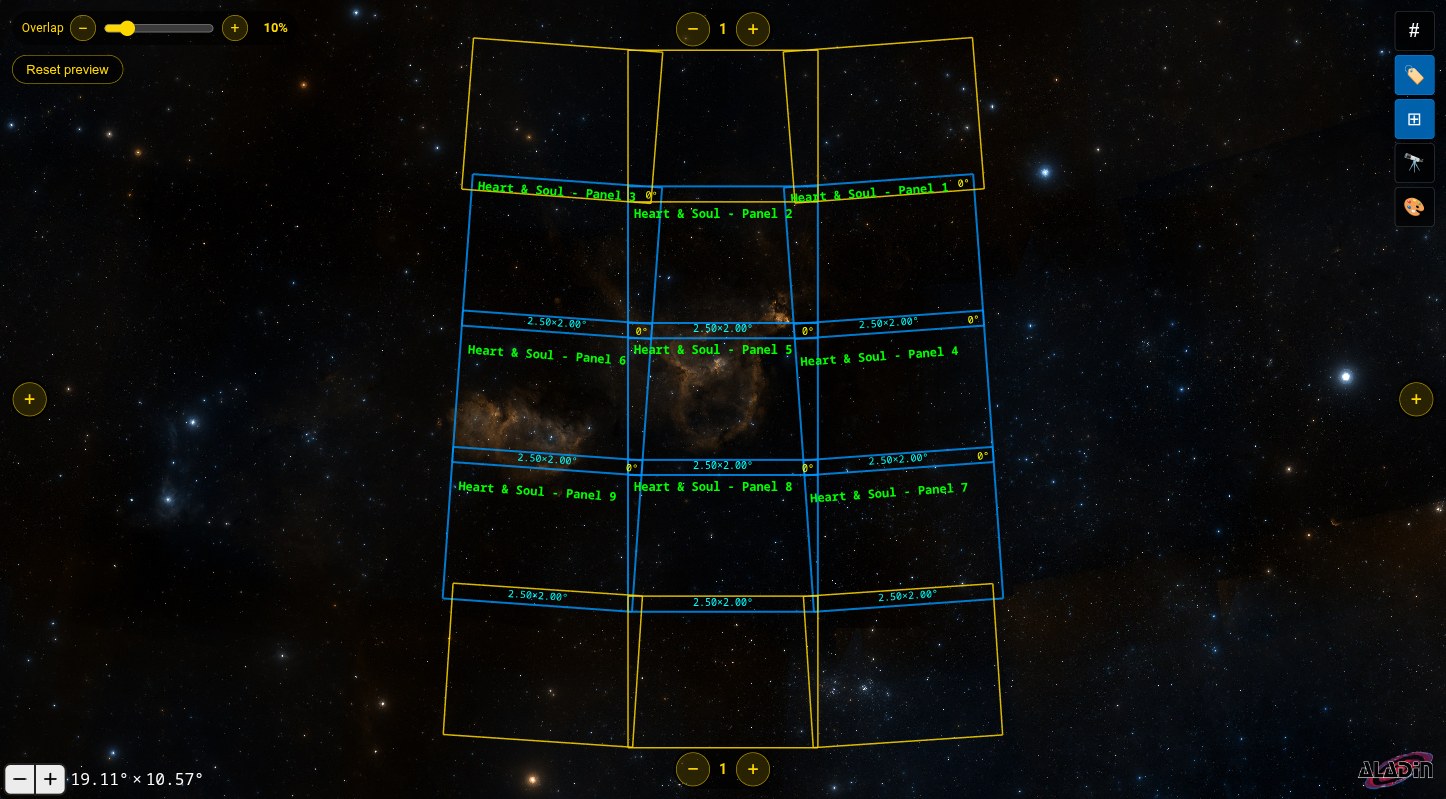
Click any panel, real or preview, to copy its RA/Dec to the clipboard, or use Copy Coordinates CSV to export all panels at once.
The panels get their frames from the NINA plugin or from imported FITS files. More in the mosaics documentation.
Try it on your own data.